How to Set Up a Product Catalog on WhatsApp

Let customers browse and buy without leaving WhatsApp. A step-by-step guide to creating a product catalog and connecting it to your business number.
Sending customers away to a website to browse products is a lost moment — every extra tap is a chance for them to leave. A WhatsApp product catalog keeps the entire browsing and buying experience inside the same chat where the conversation started.
The Problem: Browsing That Breaks the Conversation
A customer messages asking "what do you sell?" and most businesses either type out a list by hand or send a link to a website. Both cost you the moment:
- Manual product lists don't scale past a handful of items, and they look unprofessional next to a proper catalog.
- Sending customers to a separate website adds friction — a new tab, a slower mobile load, a chance to get distracted and leave.
- No visual browsing means customers can't compare products side by side the way they would in a store.
A catalog fixes this by keeping the entire experience — browse, compare, add to cart — inside WhatsApp, running on the official WhatsApp Business Platform.
The Solution: Browse and Buy Without Leaving the Chat
Once your catalog is connected, a customer can message "menu" or "catalog" and get a scrollable set of products with photos, names, and prices — right inside the chat.
Hey! Here's our catalog 🛍️
[View Catalog]
Browse everything, add what you like to your cart, and send it over when you're ready — we'll confirm and take it from there.
Setting Up Your Catalog: Two Steps
Step 1: Create the Catalog in Meta Commerce Manager
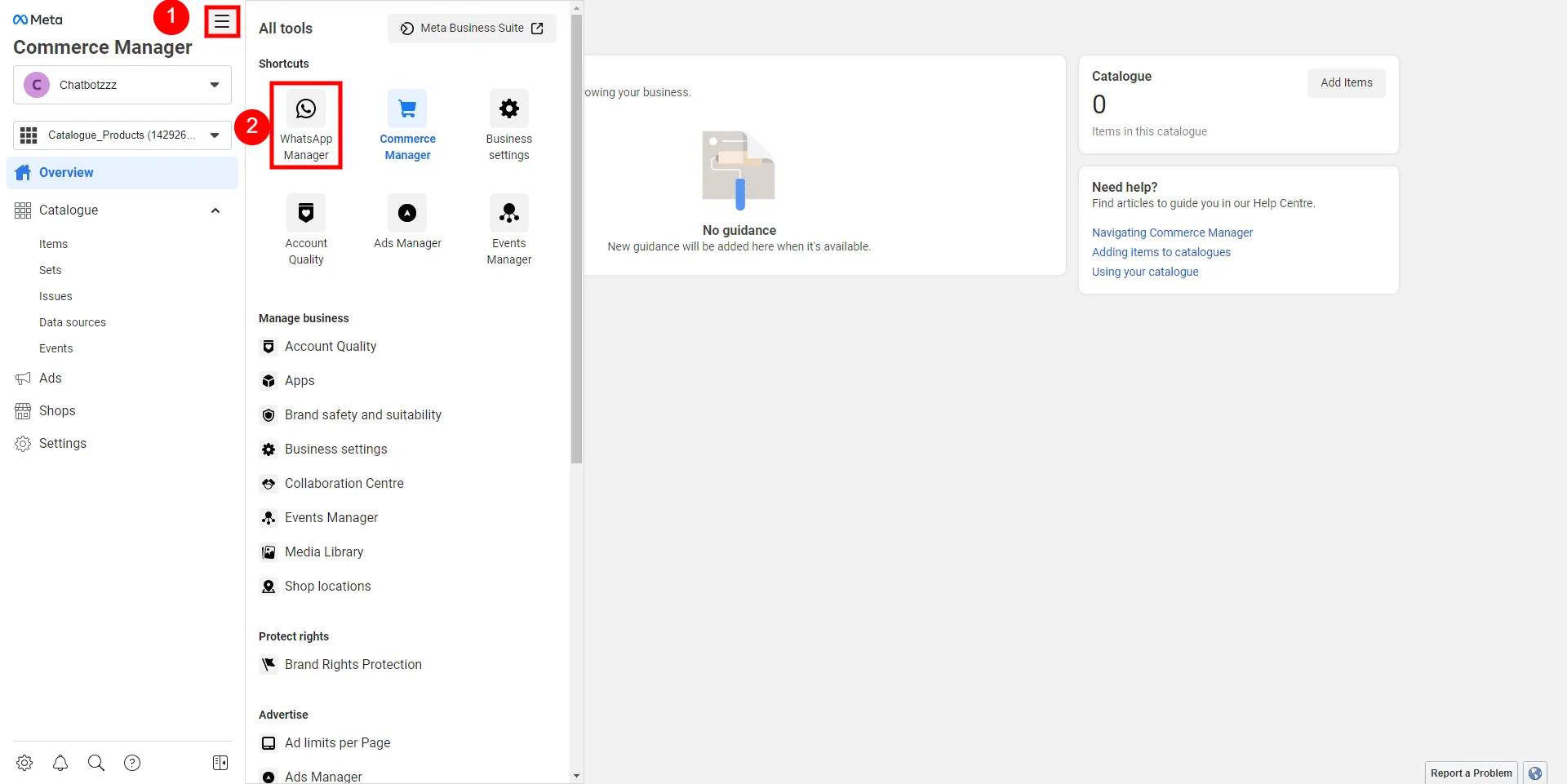
Go to business.facebook.com and open Commerce from the all-tools menu.
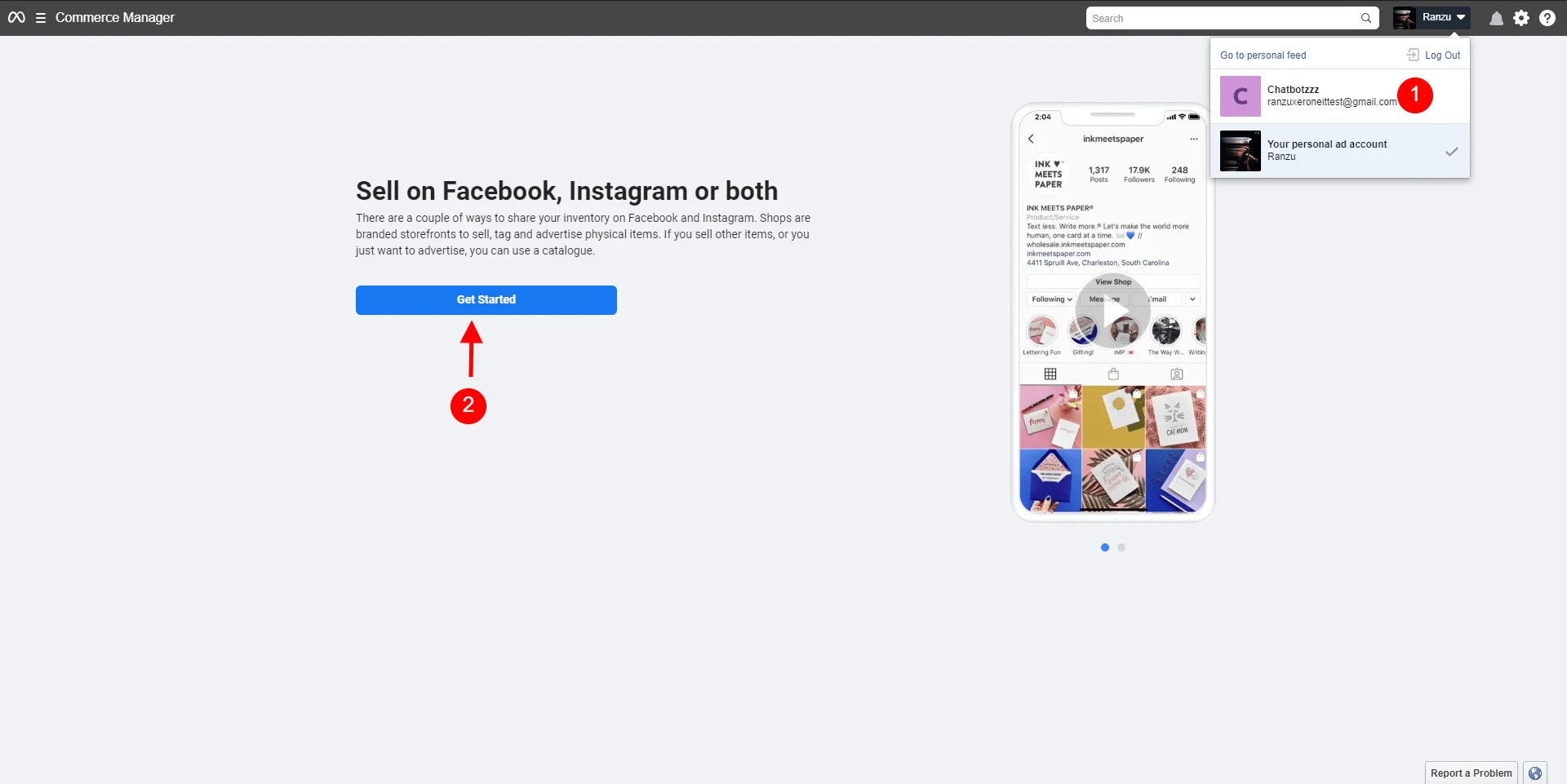
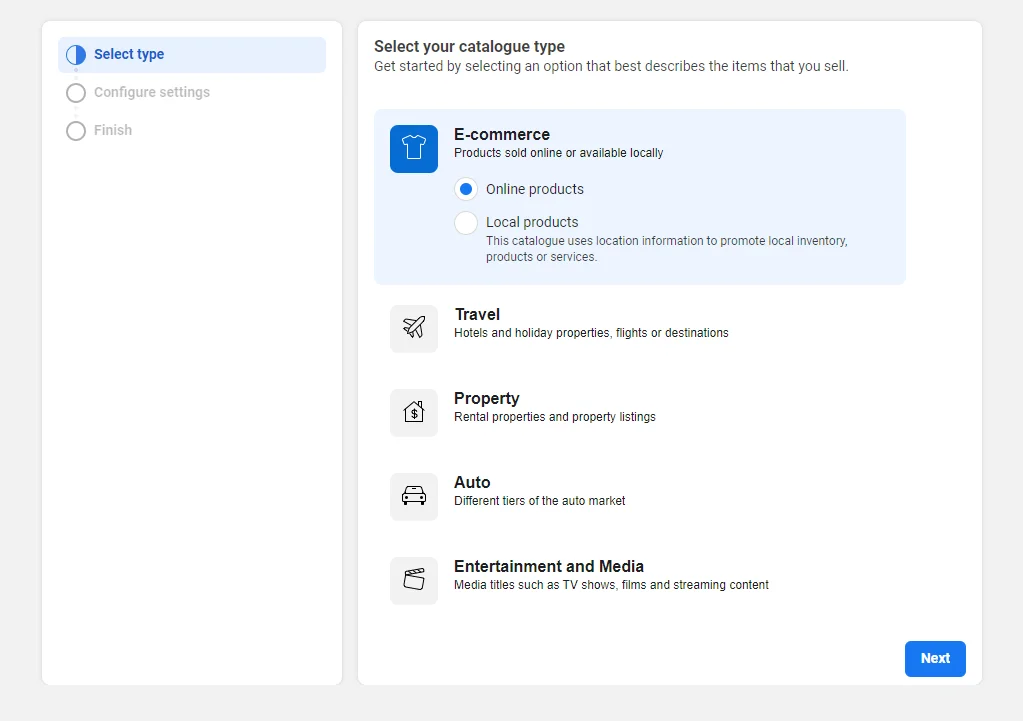
Select e-commerce, choose whether you're selling online or local products, and pick an upload method — add products manually or connect a partner platform like Shopify.
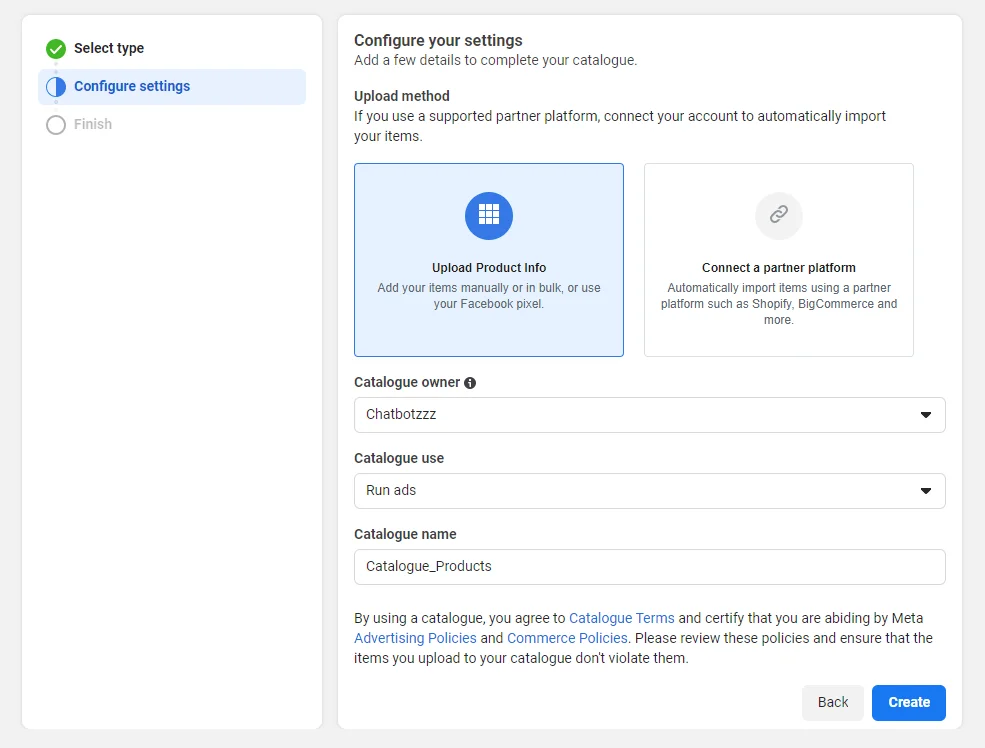
Set the catalog owner, choose how you'll use it, and give it a name.
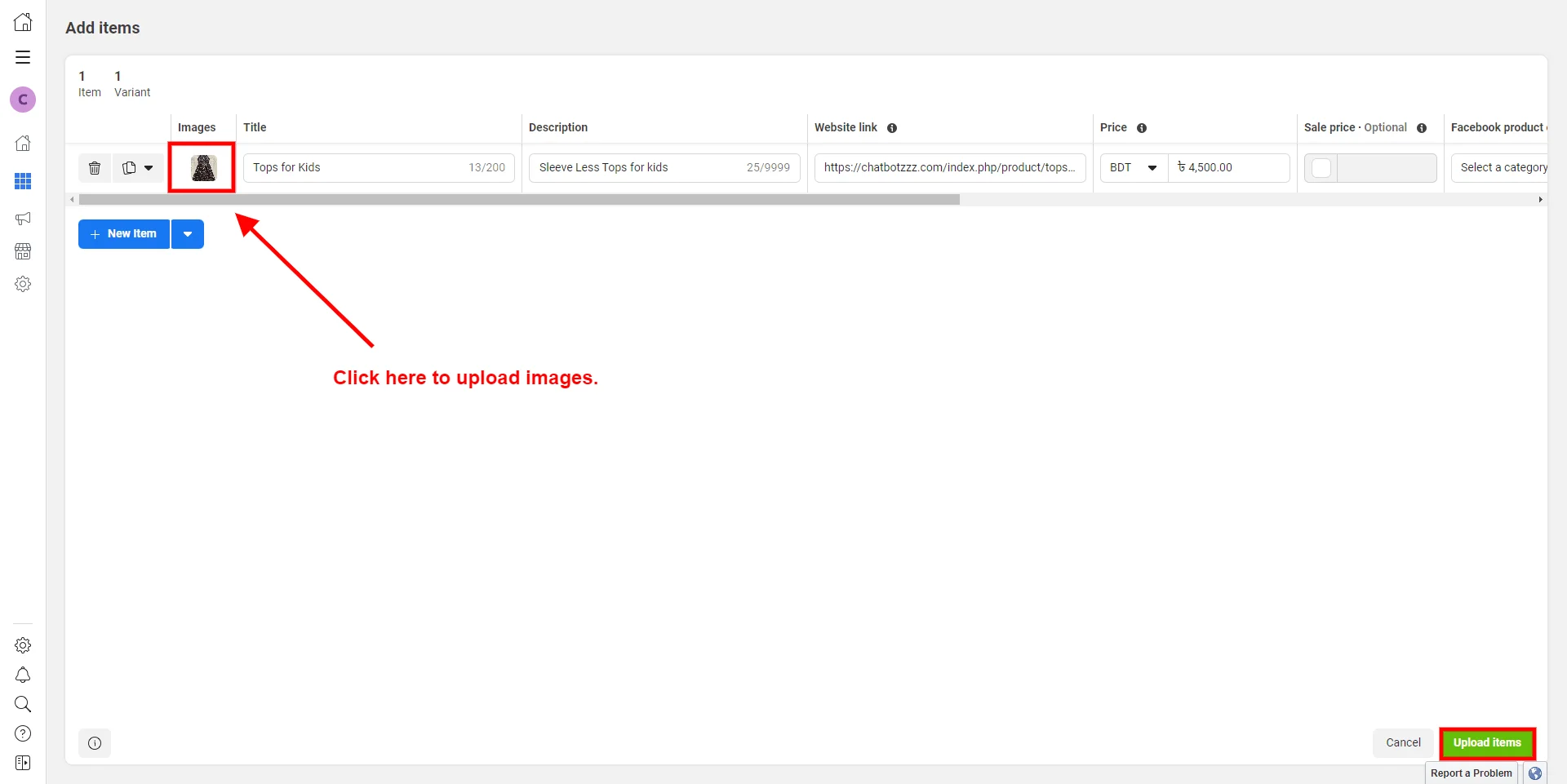
Then add your products — upload images, titles, descriptions, and prices for each item.
Step 2: Connect the Catalog to WhatsApp
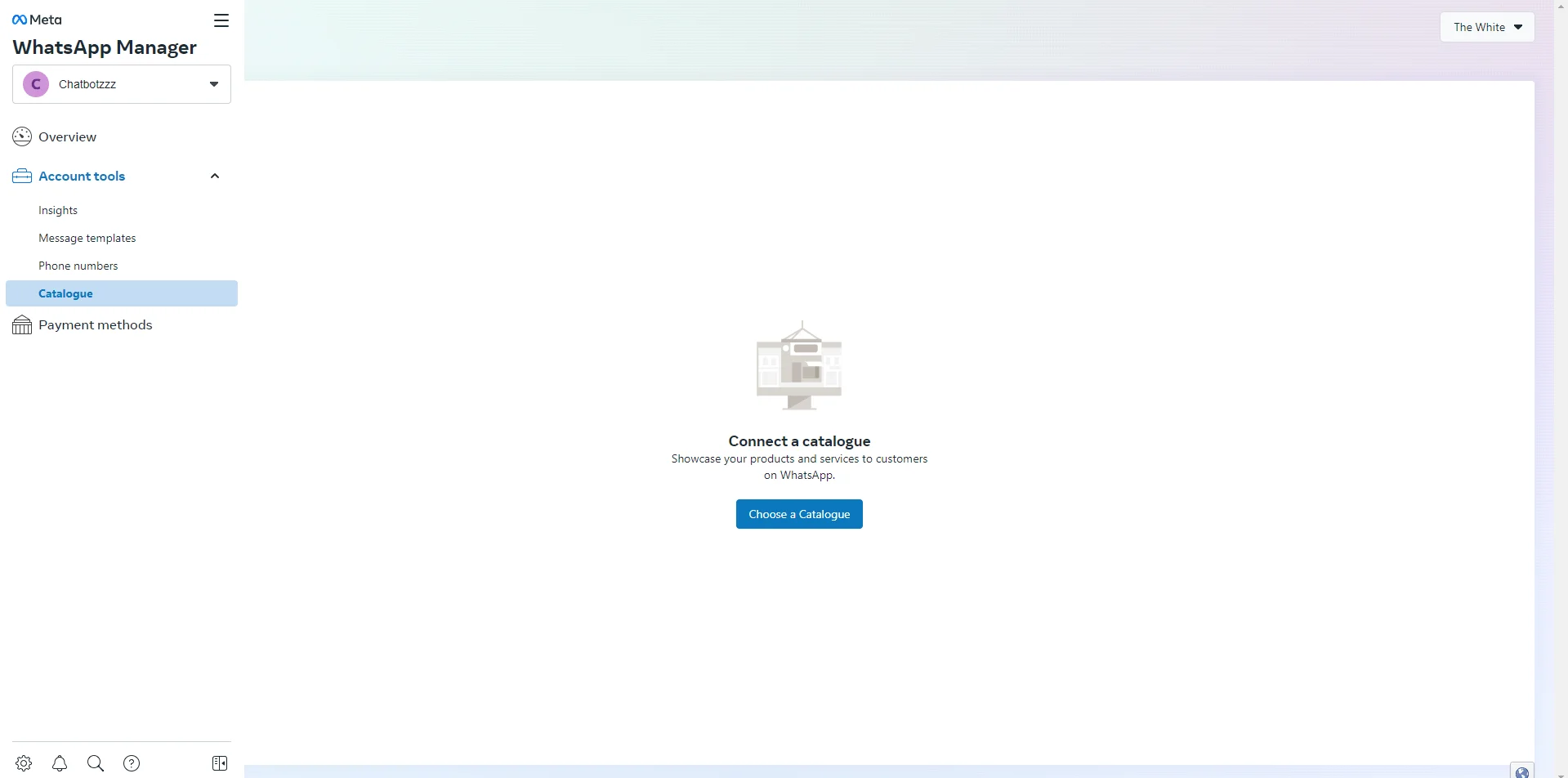
Open WhatsApp Manager from the same all-tools menu, and select Catalogue under account tools.
Choose the catalog you just created from the dropdown and connect it.
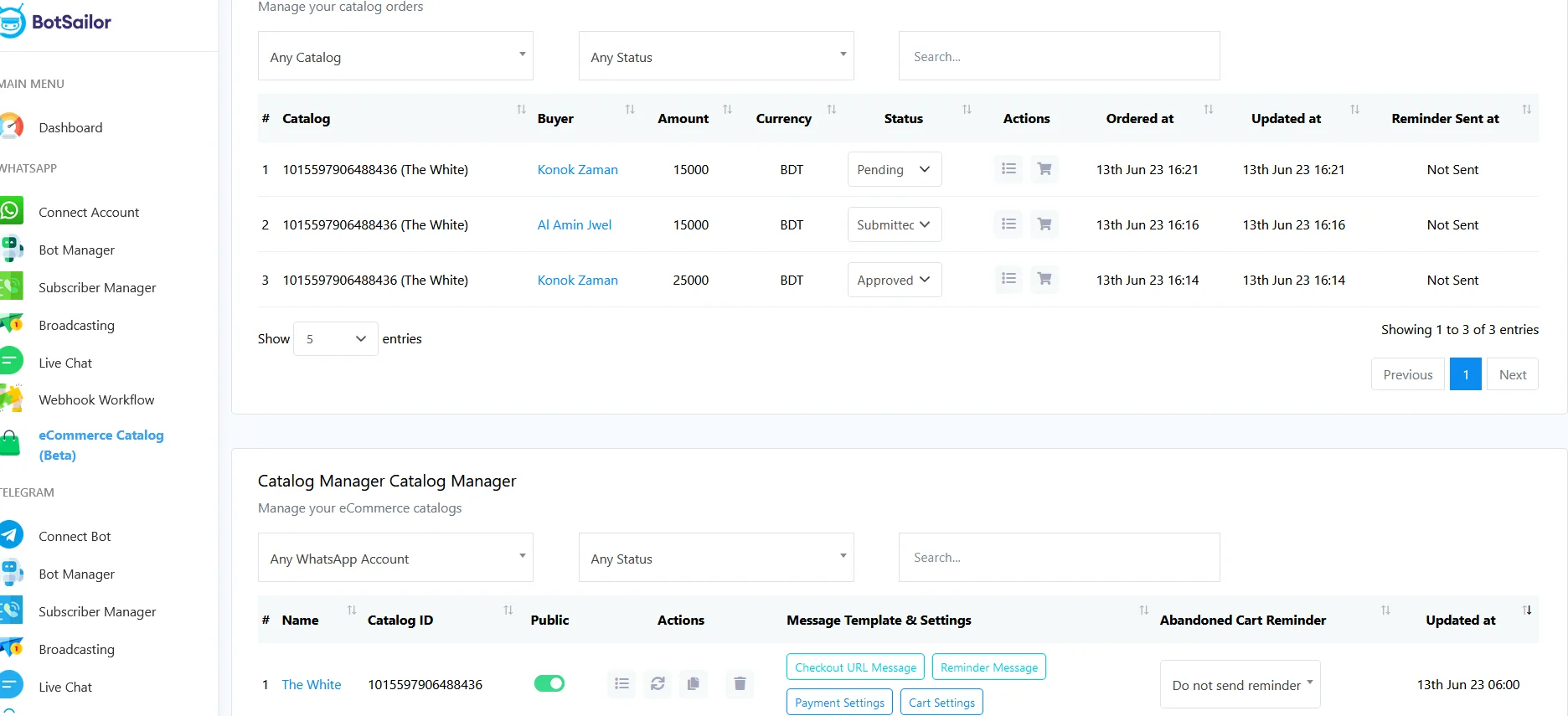
That's it — once connected, ChatSyncs can display the catalog inside your chatbot flows and route completed carts to your team.
What Customers See
Once live, customers can view your catalog directly from your WhatsApp business profile, or you can share a direct catalog link that opens straight into the browsing experience.
ROI: Catalog vs. No Catalog
Illustrative example for a small retail business.
| Metric | Text-Only Replies | With Catalog |
|---|---|---|
| Time to answer "what do you sell?" | Minutes, typed manually | Instant — one tap |
| Products customers can browse at once | A handful, listed by hand | Up to 500, with photos |
| Cart visibility for the customer | None | Full running cart |
| Staff time per browsing session | High | Near zero |
Who This Fits
| Business Type | Fit | Main Use |
|---|---|---|
| Retail & D2C brands | Excellent | Full product browsing and cart building |
| Boutiques & local shops | Excellent | Manual catalog, no website required |
| Wholesale & B2B sellers | Very Good | Shareable catalog links for repeat buyers |
| Service businesses with add-ons | Good | Showcasing packages or add-on items |
A Non-Obvious Insight
Most businesses treat the catalog as a one-time setup task and never touch it again. The ones that get real value from it review it monthly — pulling out slow movers, promoting what's actually selling, and keeping prices current. A catalog that matches what's really in stock builds trust; a stale one that shows sold-out items erodes it fast, since the customer already committed the mental effort of browsing before finding out it wasn't available. Treat the catalog like a live shelf, not a PDF you upload once.
Why ChatSyncs?
- Official WhatsApp API — a verified number, no ban risk, unlike unofficial catalog tools.
- Catalog built into chatbot flows — customers browse and check out without leaving the conversation.
- No-code setup — connect your catalog once, update products any time.
- Grows with you — start self-serve on Starter, or move to guided or done-for-you setup as your catalog grows.
Final Step
A catalog turns your WhatsApp number from a support line into a full storefront. Once it's live, pair it with automated abandoned cart recovery to catch the carts that don't convert on the first try, or start with a no-code chatbot flow if you haven't built your first bot yet. Set up your catalog with ChatSyncs today.
Sources & further reading

Lakshit Ukani
Founder, ChatSyncs
I help growing businesses respond instantly, follow up automatically, and close more sales on WhatsApp — using the official WhatsApp Business API.